To set up emergency contacts on your iPhone, open the Health app, tap your profile, then Medical ID, and input your health details along with emergency contacts. Make sure “Show When Locked” is enabled so first responders can access this info without unveiling your phone. On Android, go to Settings > Safety or Emergency, add your emergency contacts and medical info, then activate SOS features. Keep these details accurate, and if you keep exploring, you’ll find even more ways to stay protected.

Get bike and ride gear delivered free — and shop member deals
- Fast, free delivery on millions of items
- Access to Prime Big Deal Days deals on October 6–7
- Prime Video, Amazon Music and more included
Key Takeaways
- Set up Medical ID on iPhone via the Health app, including emergency contacts and vital health info.
- Enable “Show When Locked” to make Medical ID accessible to first responders without unlocking.
- On Android, add emergency contacts and health details through the Safety or Emergency settings.
- Activate SOS features on iPhone by pressing the side button five times; on Android, use available SOS options or apps.
- Regularly verify and test emergency contact setup and SOS functions to ensure quick access during emergencies.
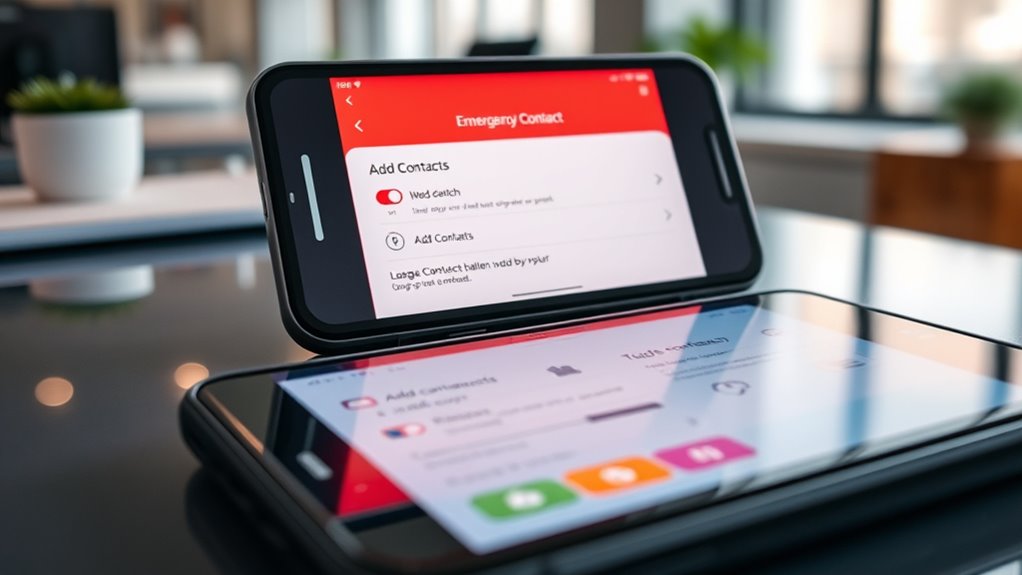
Have you ever wondered how to quickly alert loved ones in an emergency? Setting up your emergency contacts on your iPhone or Android device is a crucial step that could make all the difference when seconds matter. Modern smartphones come equipped with features like Medical ID and SOS that allow you to share vital health information and contact details with just a few taps. These tools are designed to guarantee help arrives faster and that your loved ones are informed if something goes wrong. Implementing these features also enhances your self‑defense against manipulation, ensuring you retain control over your privacy and safety in critical moments.
On an iPhone, the process begins with setting up your Medical ID. You can access this feature through the Health app. Once there, you’ll input important details like allergies, medical conditions, medications, and emergency contacts. Make sure to toggle on the “Show When Locked” option. This way, your Medical ID becomes accessible even when your phone is locked, allowing first responders or anyone who finds you to see crucial information without unlocking your device. Additionally, your iPhone’s SOS feature can be activated by pressing the side button rapidly five times. This triggers an emergency call and automatically shares your location with emergency services and your chosen contacts. When you set up your emergency contacts within the Medical ID, they’ll receive notifications when you use the SOS feature, guaranteeing they’re immediately aware of your situation.
Android devices also offer robust emergency features, including setting up your Medical ID and configuring the SOS function. The exact steps can vary depending on your device and operating system version, but generally, you’ll find the emergency settings in the Safety or Emergency section of your device’s Settings menu. Here, you can add emergency contacts and input health details similar to the iPhone’s Medical ID. Many Android phones also have an SOS feature that can be activated by pressing a specific button combination or through a dedicated emergency app. Once enabled, this feature can make emergency calls, send alerts to your contacts, and share your location. Be sure to customize your emergency contacts and double-check that your medical details are accurate and accessible. This way, in an emergency, your loved ones will be instantly notified, and responders will have vital health information at their fingertips.
As an affiliate, we earn on qualifying purchases.
Frequently Asked Questions
Can I Add Multiple Emergency Contacts on My Device?
Yes, you can add multiple contacts for emergency notifications on your device. Both iPhones and Androids allow you to select several emergency contacts, ensuring your loved ones are notified if needed. Just go to your emergency settings, choose your contacts, and save. This way, in an emergency, multiple contacts will receive notifications, providing you with better support and faster assistance when it matters most.
Will Emergency Contacts Be Notified Automatically During an Emergency?
No, emergency contacts aren’t notified automatically during an emergency. You need to manually alert them or use specific emergency features on your device. Be aware of privacy concerns, as some apps require permissions to share your location or health info during emergencies. Always review app permissions carefully to safeguard your privacy, and consider setting up emergency alerts or notifications to ensure contacts are informed when needed.
How Do I Update or Remove Emergency Contacts Later?
Think of your emergency contacts as a safety net—you can easily update or remove them when needed. On your iPhone or Android, open your health or safety app, navigate to contact management, and select the contact you want to change. To remove, simply delete the entry. For privacy concerns, double-check app permissions and settings regularly to guarantee only trusted contacts are listed, maintaining control over your emergency information.
Are Emergency Contacts Visible to Others Without My Permission?
Emergency contacts are not visible to others without your permission, so your privacy concerns are generally safeguarded. However, sharing permissions vary based on your device and app settings. On iPhone and Android, only those with access to your emergency information can see it, and you control who can view or update this data. Always review your privacy settings regularly to ensure your emergency contacts remain private and secure.
Is There a Way to Test the Emergency Contact Setup?
You can verify your emergency contact setup by triggering a test notification alert, if available, through your device’s settings or emergency app. This helps confirm your emergency contact privacy and guarantees they’ll be notified during an actual emergency. Keep in mind, not all systems support testing, so double-check your device’s options. Testing now ensures your contacts are correctly set up and ready when needed, providing peace of mind.
As an affiliate, we earn on qualifying purchases.
Conclusion
Now that you’ve set up your emergency contacts, you’re better prepared for any situation. It’s like having a safety net ready to catch you when you fall. Make sure your loved ones’ info is up-to-date and easily accessible. Don’t wait for trouble to strike—prevention is key. With a little effort today, you’re ensuring peace of mind tomorrow. Remember, it’s better to be safe than sorry, so take a moment now to double-check your setup.
Emergency SOS device for smartphones
As an affiliate, we earn on qualifying purchases.
As an affiliate, we earn on qualifying purchases.
Medical ID for iPhone and Android
As an affiliate, we earn on qualifying purchases.
As an affiliate, we earn on qualifying purchases.
Evergreen bestsellers Picks
bestsellers
As an affiliate, we earn on qualifying purchases.